
AUDIENCE / RECENTLY ACTIVE
Choose how recently your audience was active.
Build a Telegram bot campaign around a defined activity window. Explore 24 hours, 3 days, 7 days or 30 days, with a budget and CPM you can review before launch.
Estimate Recently activeEstimate your budget before signing up.
FOUR WAYS TO DEFINE RECENT
- 24hActive in the last day
- 3dActive in the last 3 days
- 7dActive in the last week
- 30dActive in the last 30 days
Recent activity Wider time window
RECENCY, EXPLAINED
Choose the time window behind your test.
Recently active is the public name for Mass Active audiences. Each option uses a bot-activity window to define eligibility. A shorter window describes more recent activity; it does not prove buying intent.
| Window | What it describes | A question you can explore |
|---|---|---|
| 24 hours | Activity within the last day | How does the offer perform with the most recent activity window? |
| 3 days | Activity within the last three days | What changes when the window includes several days? |
| 7 days | Activity within the last week | How does a weekly activity window perform for this offer? |
| 30 days | Activity within the last thirty days | What changes with a wider recency definition? |
The window alone does not tell you available volume, unique audience size or likely conversion. Use the selected option’s current calculator settings and your own campaign observations.
ONE OFFER, A DIFFERENT WINDOW
Make recency the variable you are testing.
If the question is about activity windows, keep the message and destination consistent. Record the conditions of each separate campaign so the results have context.
Choose a starting window
The calculator link on this page opens at 24 hours. You can select 3, 7 or 30 days before continuing. Choose deliberately based on the recency question you want to investigate.
Record the actual settings
Each window has its own CPM settings. Keep track of audience, budget, CPM, dates, pauses and delivery. Windows overlap in definition, and separate campaigns do not create mutually exclusive test groups.
Measure the same action
Use distinct tracking labels with the same downstream event definition. Compare observed actions and spend, accounting for differences in availability and timing. Recency alone does not establish a better result.
FROM A WINDOW TO A CAMPAIGN
Review the plan for your selected audience.
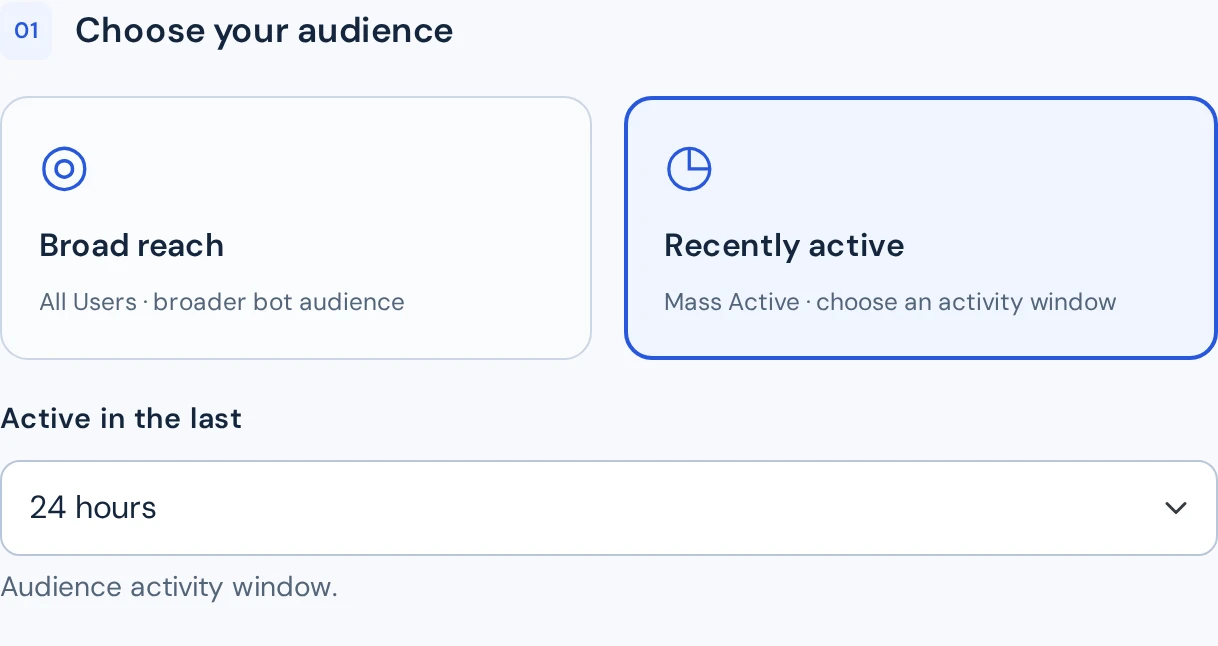
Choose Recently active, then select the activity window. Adjust your budget and CPM in the calculator before signing in to prepare the message.
Read the estimate correctly
Successful sends are calculated from budget and CPM, with rounding to campaign delivery units. A send confirms technical delivery; it does not confirm a read, click or conversion.
Understand a waiting campaign
A 24-hour audience does not promise delivery within 24 hours. Check ad approval, balance, eligible recipients and auction conditions if delivery is waiting. The selected audience is not silently replaced.
Continue with your choices
Your selected window, budget and CPM continue through the saved-plan workflow in this browser for up to seven days. Review the campaign before explicitly confirming its creation.
YOUR NEXT STEP
Put a clear window around your next test.
Start at 24 hours or explore a wider activity window. Review the budget and delivery estimate before creating your campaign.
Estimate Recently activePlan now. Sign in to create and preview your ad.